
Pixel Screen (16x16)
Overview
- Purpose: The Pixel Screen (16x16) is a visualization component that displays a 16x16 grid of pixels, with each pixel's state determined by memory values. This component is useful for creating simple graphics, displaying patterns, or visualizing memory contents in your digital circuits.
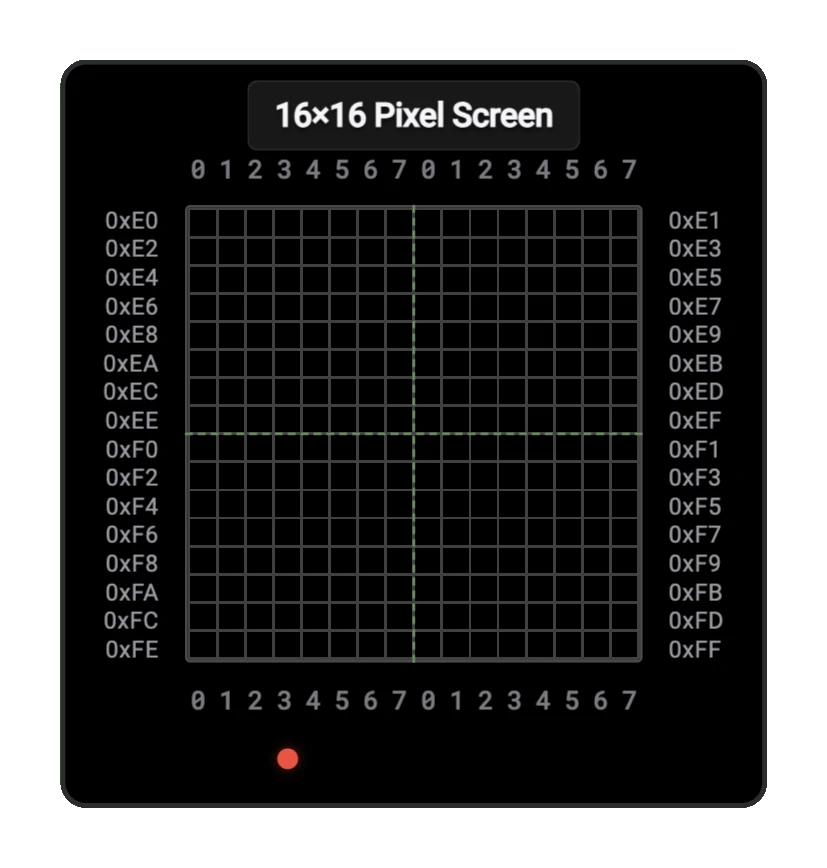
- Symbol: The Pixel Screen is represented by a rectangular display grid. It has no external connection pins — it reads display data directly from a connected RAM component's internal memory.
- DigiSim.io Role: Provides visual output capability for digital circuits, enabling graphics display, pattern visualization, and memory content monitoring.
Functional Description
The Pixel Screen component reads its display data from a connected RAM component, interpreting each bit in memory as a pixel that can be either on or off. The component offers a resolution of 16x16 pixels (256 pixels total), which requires 32 bytes of memory to represent (1 bit per pixel).
Pins
The Pixel Screen has 0 inputs and 0 outputs. It does not have any external connection pins. Instead, it reads display data directly from a connected RAM component's internal memory, using the configured start address to locate the pixel data.
Configuration
The Pixel Screen has several configurable properties:
- Start Address: The starting memory address where the display data begins (default: 0xE0)
- Foreground Color: The color of active (ON) pixels
- Background Color: The color of inactive (OFF) pixels
- Pixel Scale: The size of each pixel in the display
Memory Mapping
The 16x16 pixel grid is mapped to memory as follows:
- Each byte in memory represents 8 horizontal pixels
- 32 consecutive bytes (256 bits) are used for the entire display
- Bits are mapped from MSB to LSB within each byte
For example, with a start address of 0xE0:
| Address | Byte | Description |
|---|---|---|
| 0xE0 | [76543210] | First 8 pixels of row 0 |
| 0xE1 | [76543210] | Last 8 pixels of row 0 |
| 0xE2 | [76543210] | First 8 pixels of row 1 |
| 0xE3 | [76543210] | Last 8 pixels of row 1 |
| ... | ... | ... |
| 0xFE | [76543210] | First 8 pixels of row 15 |
| 0xFF | [76543210] | Last 8 pixels of row 15 |
Note: Bits 7-0 within each byte represent 8 horizontal pixels, mapped from MSB to LSB
Usage
To use the Pixel Screen component:
Add the component to your circuit alongside a RAM component
The Pixel Screen automatically reads from the connected RAM component's memory — no pin wiring is required
Set the Start Address in the component's properties to specify where in RAM the display data begins
Write bit patterns to the memory addresses to create your display:
- Write a 1 to turn a pixel ON
- Write a 0 to turn a pixel OFF
The display updates automatically as RAM contents change
Example Applications
Simple Pattern Display
// Store a checkerboard pattern
// First row (alternating pixels)
RAM[0xE0] = 0b10101010;
RAM[0xE1] = 0b10101010;
// Second row (inverted pattern)
RAM[0xE2] = 0b01010101;
RAM[0xE3] = 0b01010101;
// Repeat pattern for remaining rows...
16x16 Sprite Display
// Display a simple face
// Eyes (rows 4-5)
RAM[0xE8] = 0b00100100;
RAM[0xE9] = 0b00000000;
RAM[0xEA] = 0b00100100;
RAM[0xEB] = 0b00000000;
// Mouth (row 10)
RAM[0xF4] = 0b00011000;
RAM[0xF5] = 0b00100100;
Creating Animations
To create animations:
- Update the RAM contents for each frame
- Use a clock divider to control the refresh rate
- Synchronize RAM writes with the display's refresh cycle to prevent flickering
Tips and Tricks
- Use a separate RAM area as a "back buffer" to prepare the next frame, then copy it to the display area to prevent flickering
- Create drawing routines to set individual pixels by calculating the appropriate bit and byte
- For color effects, you can modify the foreground and background colors through the component's properties
- Combine with other components like counters or control units to create autonomous displays
- For smooth animations, ensure your circuit updates the display at a consistent rate